Adult Basic Education

ABE Registration
Links to register for:
GED and/or Adult High School Diploma
High School Referral (Current CA High School Students)
Registration for Computer Classes, ASVAB, AIME, HESI Prep, Healthcare Math, and all other Learning Center programs (or to get more information)
- STEP ONE: Complete the ABE Registration Form and a staff member will contact you to get you enrolled and/or answer your questions!
2. STEP TWO: Complete the SCE Application to get a Mt. SAC ID# and/or update your account
Many students get stuck on this application - follow the steps below and you'll be able to complete it. If you need help, email omiri@mtsac.edu.
If you'd like one-on-one tech help, please visit "Zoom Tech Support Hours"
Quick summary
- Application website: mtsac.edu/noncreditapp
- Use a personal email address (School, iCloud, and Outlook emails often do not work correctly)
- Verification link expires in 5 days (email omiri@mtsac.edu if you don't get it)
- You are finished when you enter your PIN
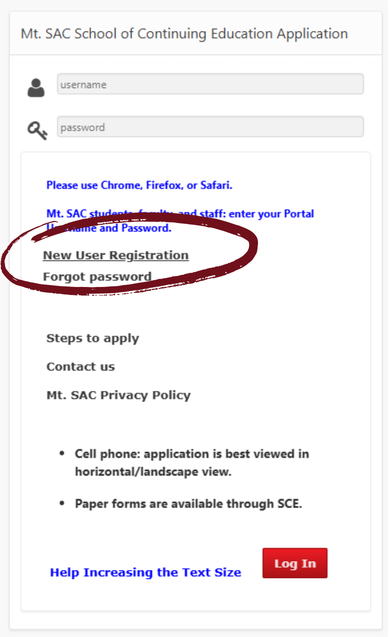
Step 1: Create your account
- Go to mtsac.edu/noncreditapp
- Select "New User Registration"
- Enter your information
- Submit the form to create your account
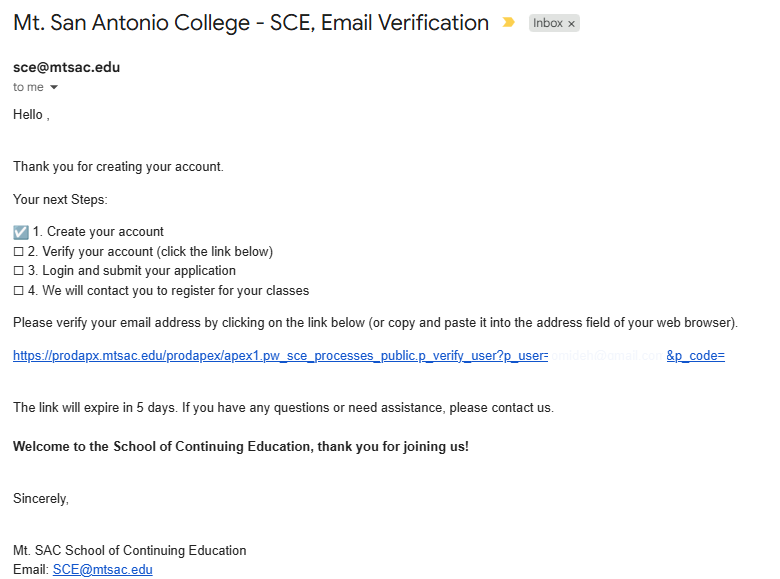
Step 2: Verify your email
- Check your email within about 5 minutes
- Click the verification link
- The link will only work for 5 days
If you do not receive the email:
- Check your spam or junk folder
- Make sure your email was entered correctly
- If needed, create a new account and start over
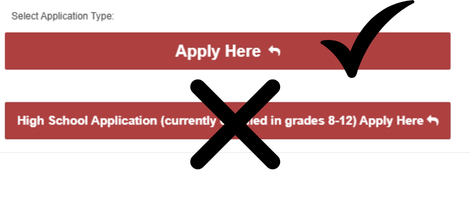
Step 3: Sign back in and open the application
- Return to mtsac.edu/noncreditapp
- Sign in using your email and password
- Scroll down and select "Apply Here" (near the bottom of the page)
Step 4: Complete the application
- Go to the tab on the top that says "User"
- Complete all required questions (You may skip the Social Security Number)
- Click on "Next"
- Complete info the "Ethnicity", "Education", and "Personal" tabs
- Under the "Programs" tab:
- Choose the "ABE" tab
- Select the program(s) you are interested in
- Please note that "HESI" is actually "TEAS" Prep, just the old name for it
- In the "Submission" tab, select your term and agree to the Agreement Statement
- Save your application
- Check for errors
- If an error appears, complete the missing information and save again
Step 5: Request your PIN
- Select Request PIN (only click once)
- Check your email for your PIN
Step 6: Submit your PIN
- Return to your application
- Enter your PIN
- Press Tab or Enter, then Submit
You are done with the SCE Application when you submit your PIN.
Once these two steps are done...
Are you interested in:
In-person classes?
- Come to Building 30, Room 111 to get registered.
- You can find a map here
- The class schedule is available here (come ten minutes before your first class so we can get you enrolled)
Online classes?
- We will get you registered!
- The class schedule is available here
- Check your email for more info
- Email us at omiri@mtsac.edu if you want to sign up for specific classes or if you don't hear from us within a week
AIME classes?
- Get complete program info and course registration numbers (CRNs) here
- You can register using the CRNs at the link above through your Portal
- If you don't know how, we can get you registered! Just email the CRN you want to register for to omiri@mtsac.edu.
TEAS Prep and/or Healthcare Math?
- Get complete program info and course registration numbers (CRNs) here
- You can register using the CRNs at the link above through your Portal
- If you don't know how, we can get you registered! Just email the CRN you want to register for to omiri@mtsac.edu.
The notices may go to your junk mail, so check that folder as well.
